Tutorials / Webmail
Tutorial · no code · 30 minutesSet up GhostParse Webmail: from install to a shared inbox
By the end, your domain has its own mailboxes in a modern webmail on your own hosting: you'll have sent and received your first email, saved a contact, and shared a support@ inbox with a teammate.
We follow Northwind Coffee, a small roaster, as they set up northwind.test. Olive runs the business; Sam answers customers. Every screenshot comes from a real install.
What you need
- A GhostParse account, and a domain you can add DNS records to.
- Hosting with PHP 8.1 or newer, MySQL (or MariaDB) and HTTPS. That's cPanel hosting, a server panel such as RunCloud, ServerPilot, Ploi, Forge or Cloudways, or your own server.
- An authenticator app on your phone, such as Google Authenticator, Microsoft Authenticator or 1Password, for two-step sign-in.
1. Add your domain
Sign in to the dashboard. Under Domains, enter your domain and choose Add domain. You get four DNS records to add where your domain's DNS is hosted (your registrar, Cloudflare or your hosting):
- SPF, DKIM and DMARC let you send: they prove your email really comes from you, so it reaches inboxes, not spam.
- MX brings your domain's email to GhostParse. Add it when you're ready to move your email over (see moving from another provider).
DNS at Cloudflare? Open Use Cloudflare? Add these records automatically on the same page instead. Once the records are in, choose Verify DNS records. Each one turns Verified, usually within minutes.
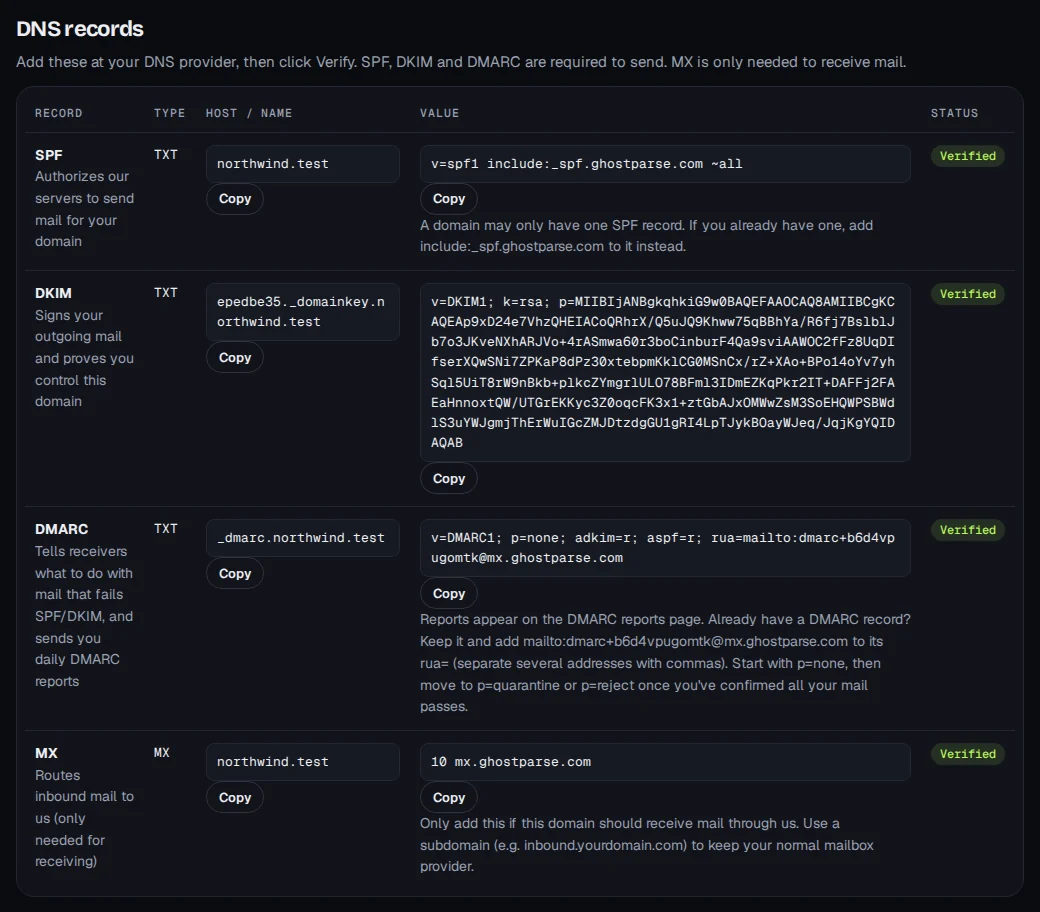
Then, further down the page under Inbound mail, choose Enable inbound, so the domain can receive email.
2. Create your email addresses
Each address you want, whether a person (olive@) or a team (support@), goes under Email addresses on the domain's page. Type the part before the @, keep Send and Receive ticked, and choose Add address.
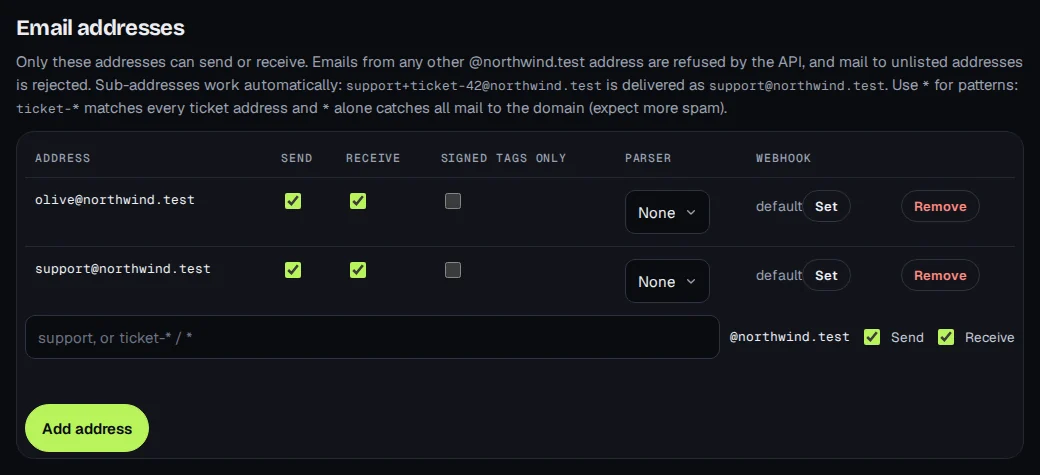
Email to addresses that aren't on the list is refused, so spammers can't invent new ones. Sub-addresses work on their own: olive+newsletters@ arrives in Olive's mailbox. You can add more addresses at any time (step 9).
3. Install the webmail
The webmail is a PHP app that runs on your hosting, with your email stored encrypted in your own MySQL database. Pick the way that suits your hosting.
On a server panel or your own server: one command over SSH
- In your panel, create a new PHP site for the webmail, such as
mail.northwind.test, with PHP 8.1+ and its free SSL certificate. Then create an empty MySQL database and a user for it. Where to find these in each panel. - Back on the domain's page in the dashboard, open Install the webmail over SSH and choose Make the install command.
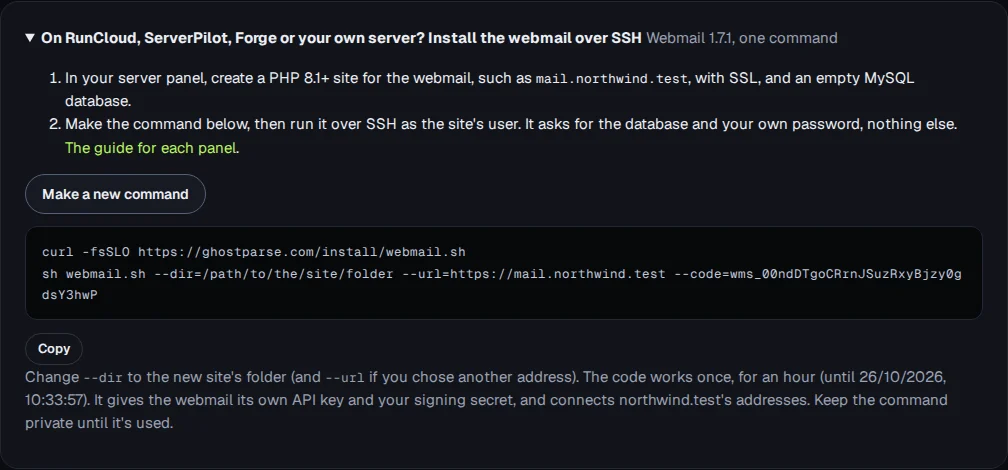
- Sign in to your server over SSH as the site's user, change
--dirto the site's folder, and run the two lines. The installer asks only for the database and your own sign-in. Passwords are typed unseen.
$ curl -fsSLO https://ghostparse.com/install/webmail.sh
$ sh webmail.sh --dir=/home/northwind/webapps/mail --url=https://mail.northwind.test --code=wms_…
GhostParse webmail 1.7.4

Setup code for northwind.test.

The database (create an empty one and its user in your panel first):
  Database host [localhost]:
  Database name: northwind_mail
  Database user: northwind_mail
  Database password:

Your own sign-in to the webmail (you add other people from inside it):
  Your email address [olive@northwind.test]:
  Your password (10 characters or more):

Downloading webmail-1.7.4.zip…
Made the API key ek_live_TIkf… for this webmail (under API keys in the dashboard).

Installing…
Mailboxes: olive@northwind.test, support@northwind.test

Checked: the web server keeps the code, settings and stored files private.

Installed. Open https://mail.northwind.test and sign in as olive@northwind.test.
Back up /home/northwind/webapps/mail/config.php: it holds the encryption key, and without it the stored mail can't be read.
Every address on the domain became a mailbox, and GhostParse now delivers their email to the webmail. If the installer says the web server shows private files, your site runs on nginx alone: add the four nginx rules it prints, and run it again. Keep a copy of config.php somewhere safe.
On cPanel hosting
On the domain's page, open On cPanel hosting? Connect cPanel, paste a cPanel API token, and choose Install webmail. GhostParse creates the database, uploads the webmail and gives you a one-time link to finish. The details. If your host offers Softaculous or Installatron, you may find GhostParse Webmail there too.
Anywhere else
Download webmail 1.7.4, upload the folder to your hosting and open its address: a five-step installer walks you through it. The guide.
4. Sign in, and set up two-step verification
Open your webmail's address and sign in with the email address and password you gave the installer. The first time, you set up two-step verification, which everyone has to have:
- Scan the QR code with your authenticator app (or type the key into it).
- Enter the 6-digit code it shows and choose Turn on.
- Save your ten recovery codes in a password manager. Each one signs you in once if you lose your phone.
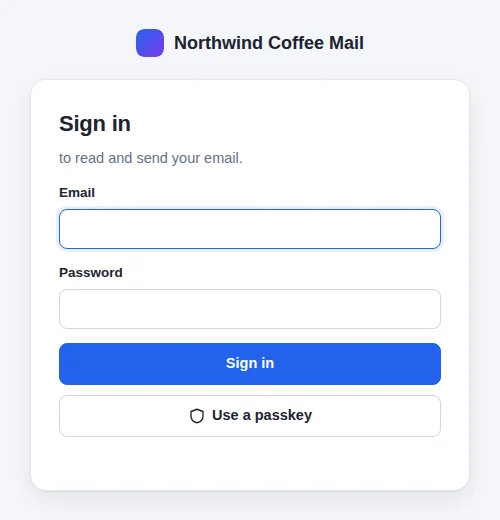
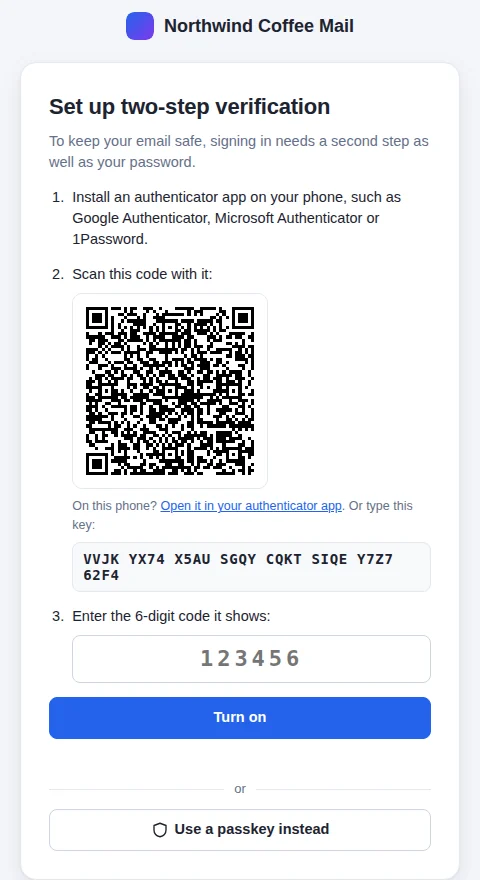
From then on, each sign-in asks for a code from the app. Prefer your face or fingerprint? Under Settings → Sign-in & alerts, choose Add a passkey. Next time, choose Sign in with Face ID (or with a passkey) on the sign-in page, or pick it from your keyboard's suggestions; in the installed app on your phone, Face ID comes up by itself. While you're there, Turn on notifications to hear about new email on this device.
On your phone, add the webmail to your home screen (Safari: Share → Add to Home Screen; Chrome: Install app) and it opens like an app.
5. Set your name and signature
Open Settings (the gear by your name) → Mailboxes. For each mailbox, set the Name people see, your Position and a Signature, and choose Save. The preview shows how it looks.
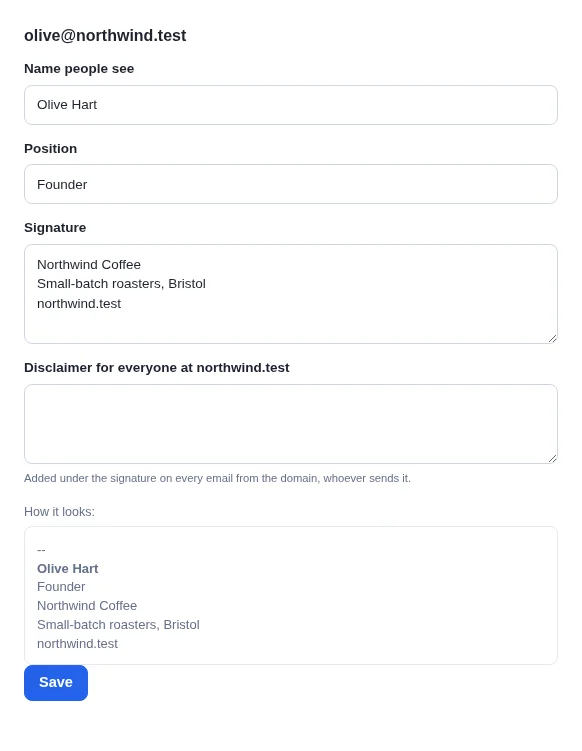
Signatures are kept on GhostParse, so they're added wherever the address's email is sent from: the webmail, your website or your shop. Administrators can also set a disclaimer for everyone at the domain.
6. Send an email
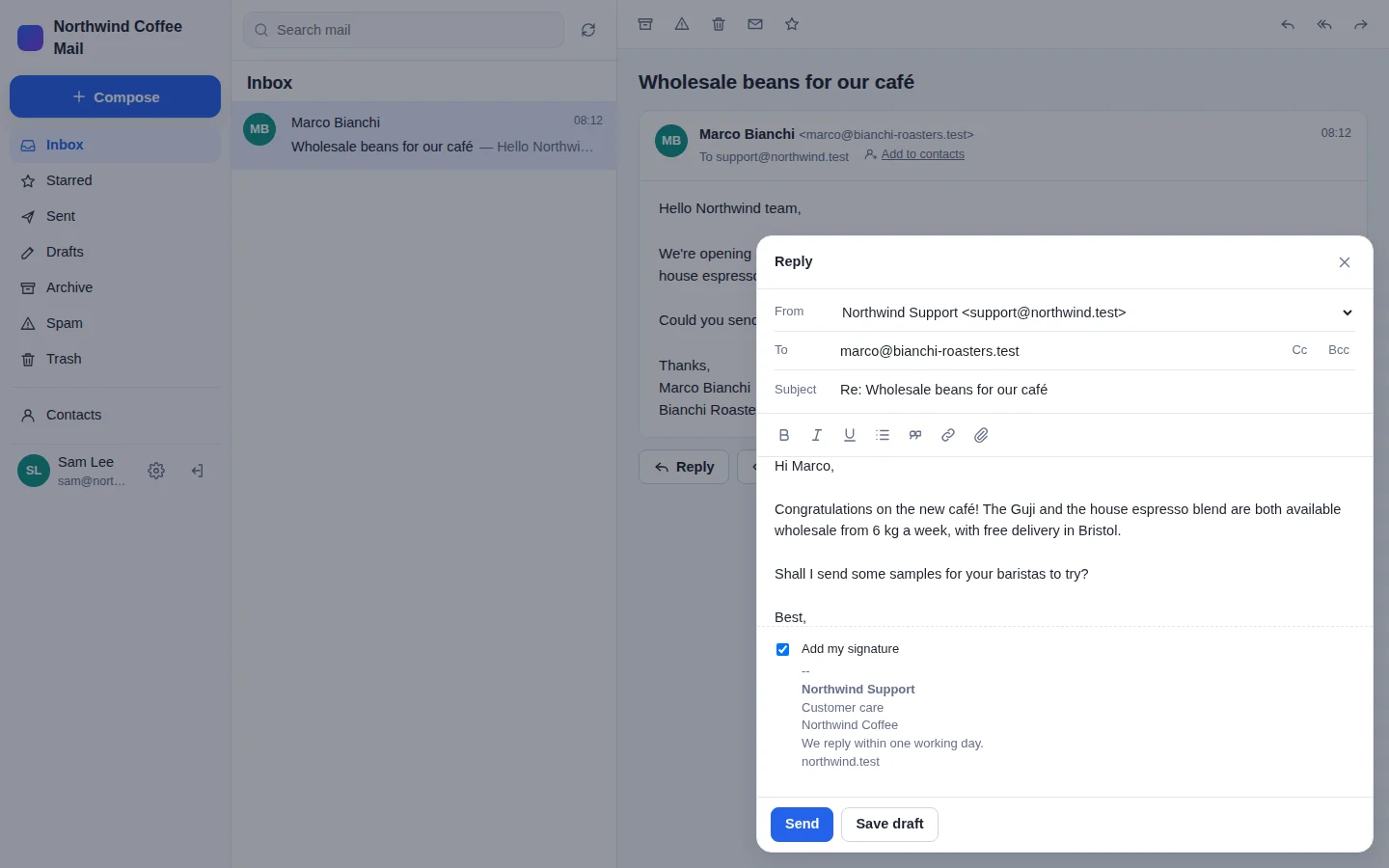
Choose Compose (or press c). Pick the From address if you have more than one, fill in To and Subject, and write. You can format text, add links and attach files up to 20 MB. Your signature is shown underneath; untick Add my signature to leave it out of this email.
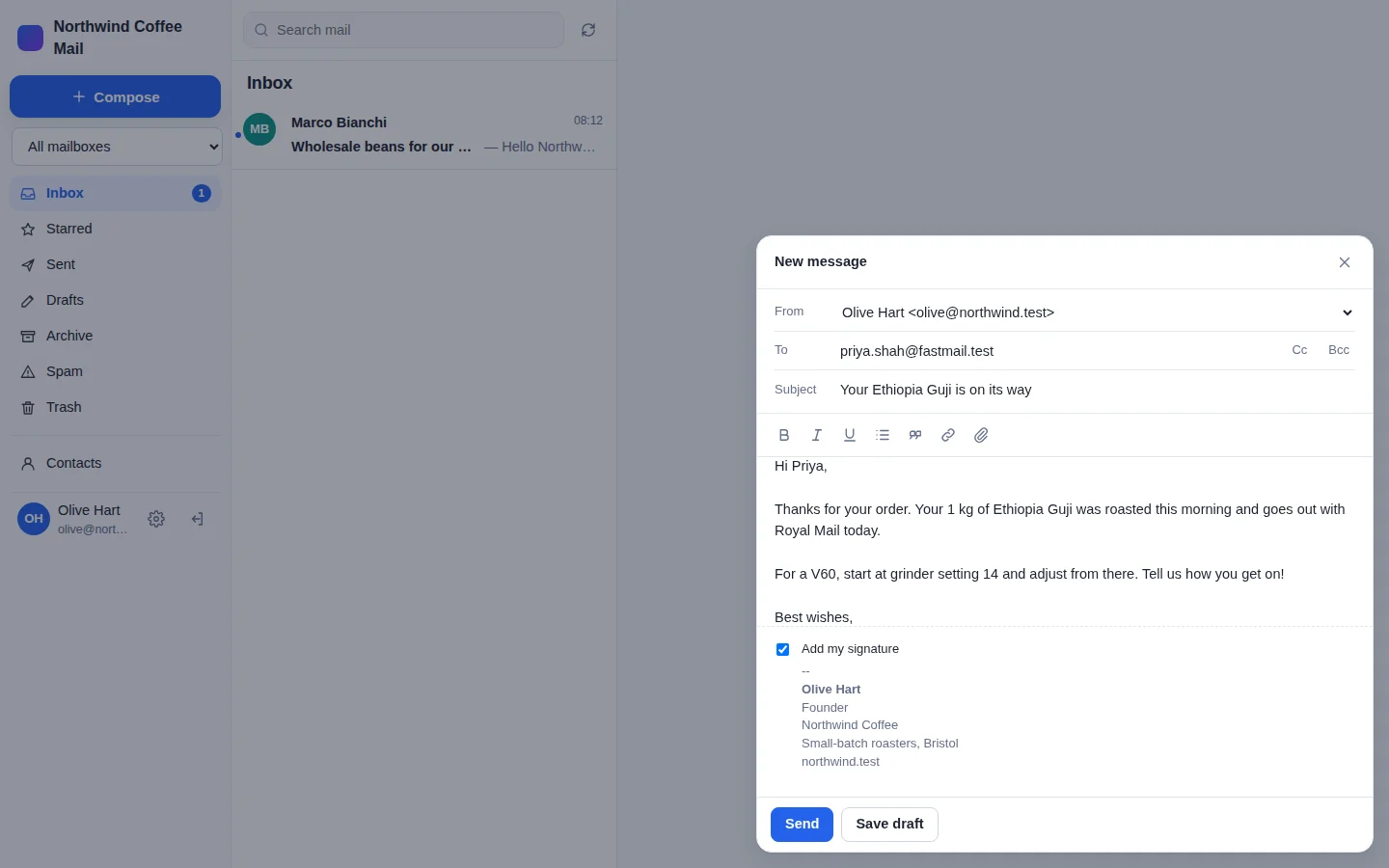
Choose Send. It's sent by GhostParse, signed for your domain, and a copy is saved in Sent. Not ready yet? Save draft keeps it in Drafts.
7. Receive email
There's nothing to set up: email to your addresses arrives at GhostParse, which checks who sent it and passes it to your webmail within seconds. It's stored there encrypted. When Priya replied, her email appeared in the inbox, in the same conversation as Olive's message:
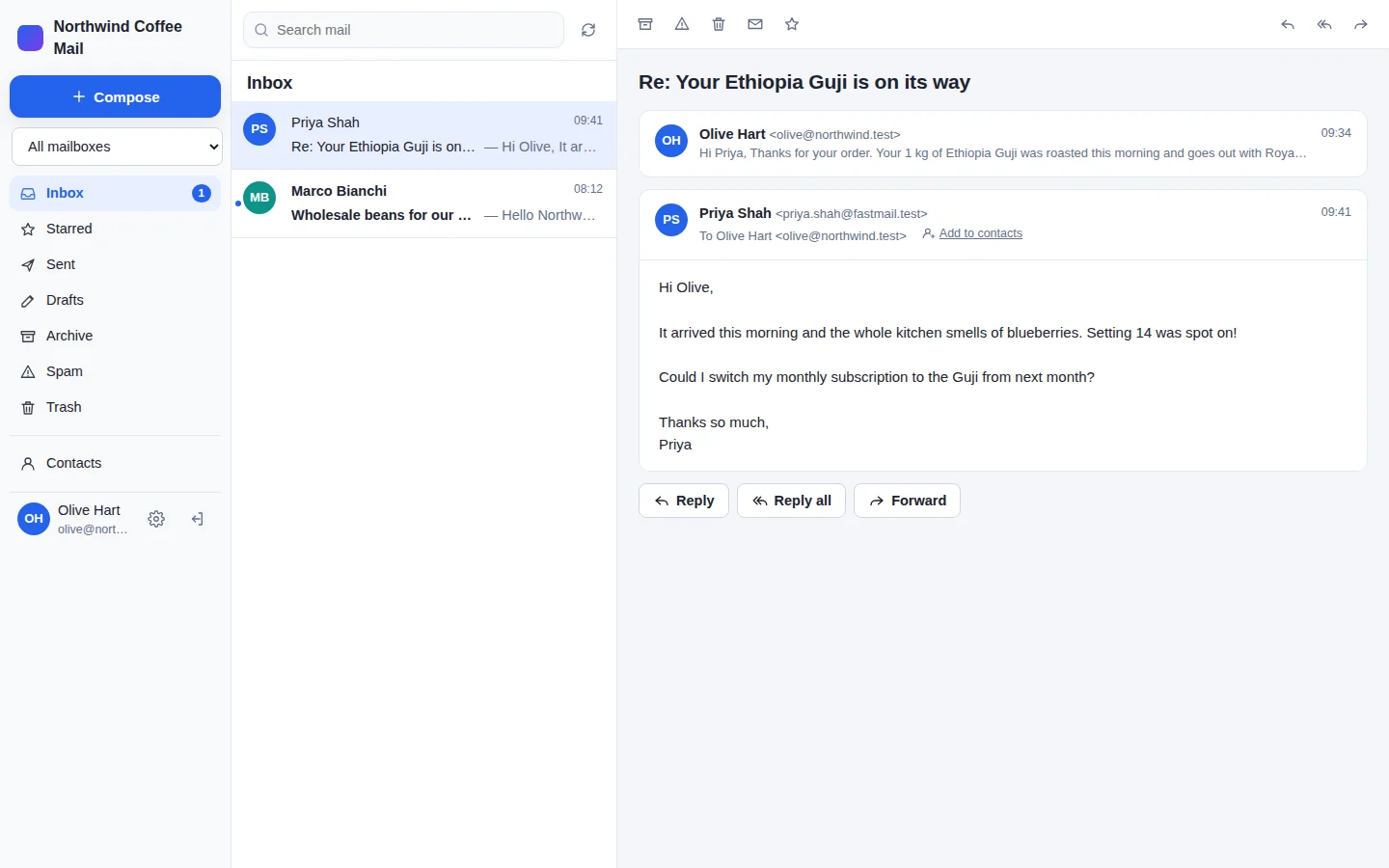
- Reply, Reply all and Forward are under the email (or press r and f). The bar above has Archive, Spam, Delete, Mark unread and Star.
- Remote images are blocked until you choose Show images, so senders can't tell when you open their email. Email that fails its sender checks is marked as an unverified sender.
- Email GhostParse's spam check flags goes to Spam. Search finds senders, subjects and message text.
8. Add a contact
The quickest way is from an email: choose Add to contacts next to the sender's name. To add details, open Contacts, choose the person and Edit. Or choose New to add someone from scratch, with their name, email, phone, company and notes.
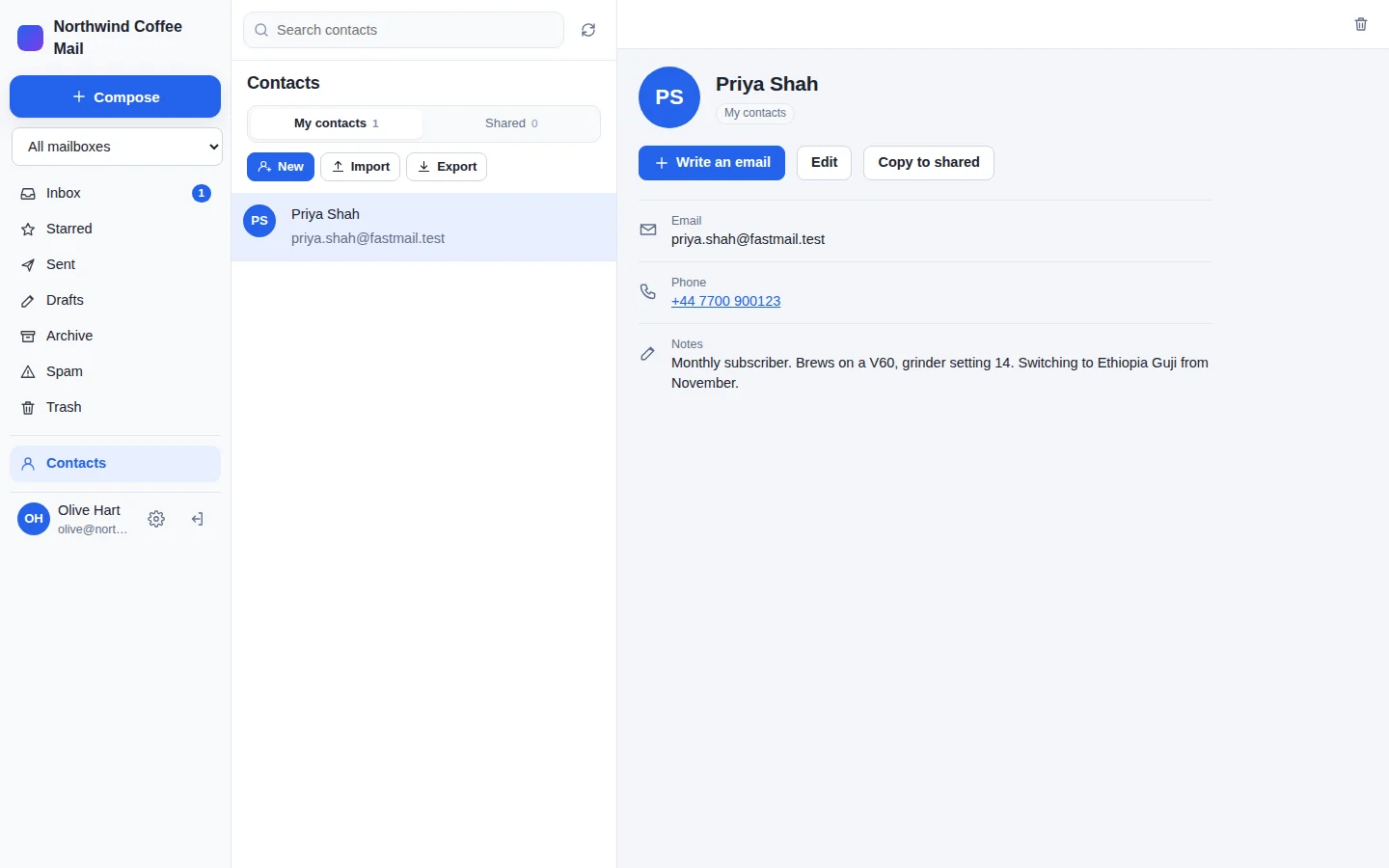
- My contacts are yours alone. Shared contacts are seen by everyone; administrators keep them up to date (Copy to shared copies one across).
- Bringing contacts from Gmail, Outlook or your phone? Export them as a
.vcfor.csvfile and choose Import. - When you write an email, names are suggested from both address books as you type.
9. Add more addresses later
New starter, or a new orders@ address? Add it on the domain's page in the dashboard (step 2). Then, in the webmail, open Settings → Connect addresses and choose Connect next to it. It becomes a mailbox here, and its email is delivered to the webmail from then on.
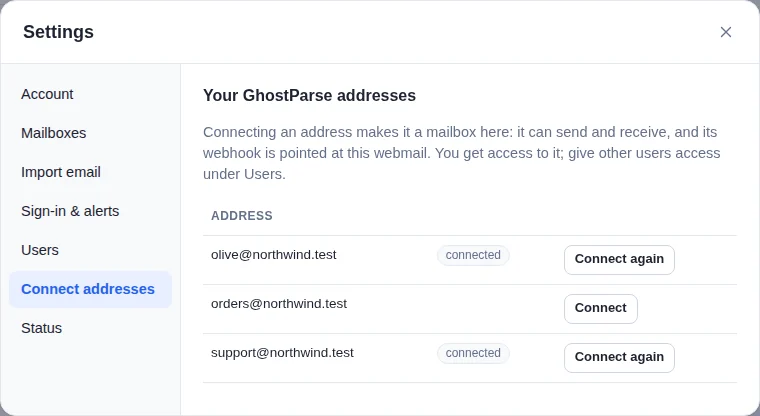
You get access to it straight away. To give other people access, use Users, next.
10. Create a shared inbox
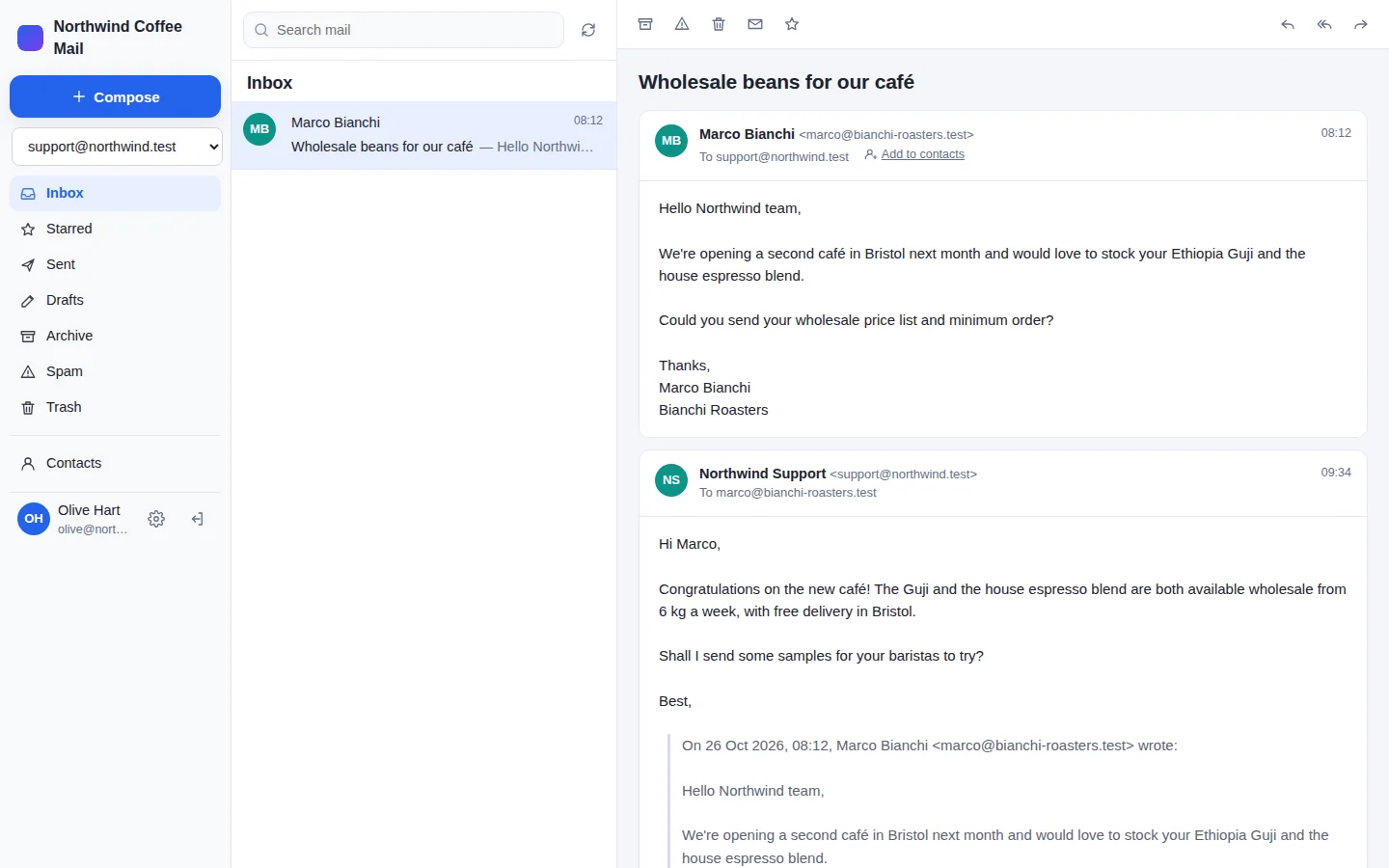
A shared inbox is a mailbox, such as support@, that several people read and answer. Everyone sees the same email and each other's replies, and replies go out from support@ under the team's name, not anyone's personal address.
- Make sure the address exists and is connected (steps 2 and 9). Under Settings → Mailboxes, give it a team name and signature, such as Northwind Support.
- Open Settings → Users. Under Add a user, enter your teammate's name, the email they'll sign in with and a starting password. Choose the role User (administrators can also manage users and addresses). Under Mailboxes, tick
support@, then choose Add user.
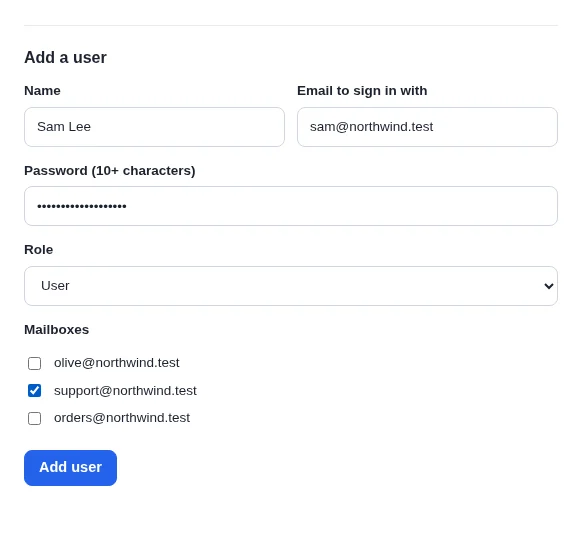
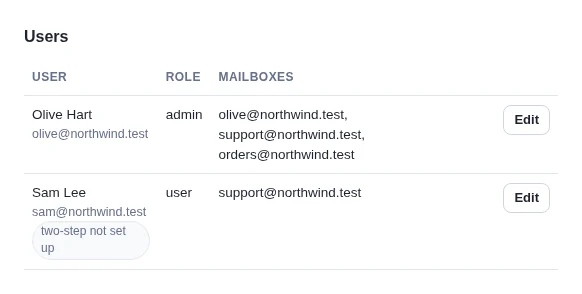
- Send your teammate the webmail's address and their password. At their first sign-in they set up two-step verification, as you did, and can change their password under Settings → Account.
Sam signs in and sees only the support inbox. Marco's wholesale enquiry is there, and Sam replies. The reply goes out as Northwind Support, with the team's signature:
Olive has access to support@ too. She picks it in the mailbox list at the top left, or stays on All mailboxes, and sees Marco's email and Sam's reply in one conversation:
- Change who can read which mailboxes at any time under Settings → Users → Edit. Someone leaving? Tick Can't sign in: their access stops, and the mailbox and its email stay.
- Lost phone? An administrator can choose Reset two-step verification for that person, who sets it up again at their next sign-in.
Moving from another provider
If your domain's email is still with Google Workspace, Microsoft 365 or your web host, bring it with you:
- In the webmail, open Settings → Import email. Sign in with Google or Microsoft (or use an app password), or pick a mailbox on the same cPanel account. Choose the folders, and they're copied in, keeping read and starred marks. Nothing on the old server is changed.
- Add the MX record from step 1 and remove the old one, so new email comes to GhostParse.
- A day later, choose Check for new mail on the import to catch anything that reached the old mailbox in between.
Imported email doesn't count towards your plan.
If something isn't working
- No email arrives. In the webmail, administrators can check Settings → Status. In the dashboard, check the domain shows Inbound: Active, and look at the Delivery log: a
400 invalid_signaturemeans the webmail's signing secret doesn't match. - "Not sent: …" Usually the domain's SPF, DKIM or DMARC record isn't verified yet. Check the domain's page in the dashboard.
- An address isn't in the webmail. Add it in the dashboard, then Settings → Connect addresses, and give people access under Users.
- "That code didn't work". Authenticator codes depend on the time: make sure your phone sets its clock automatically.
- Locked out. Use a recovery code, or ask an administrator to set a new password or reset your two-step verification under Settings → Users.